Figure Shop Simulator 1.0 Worker Settings Explained
Dial stockers and printer workers so they restock when you want—not when trays are already empty.
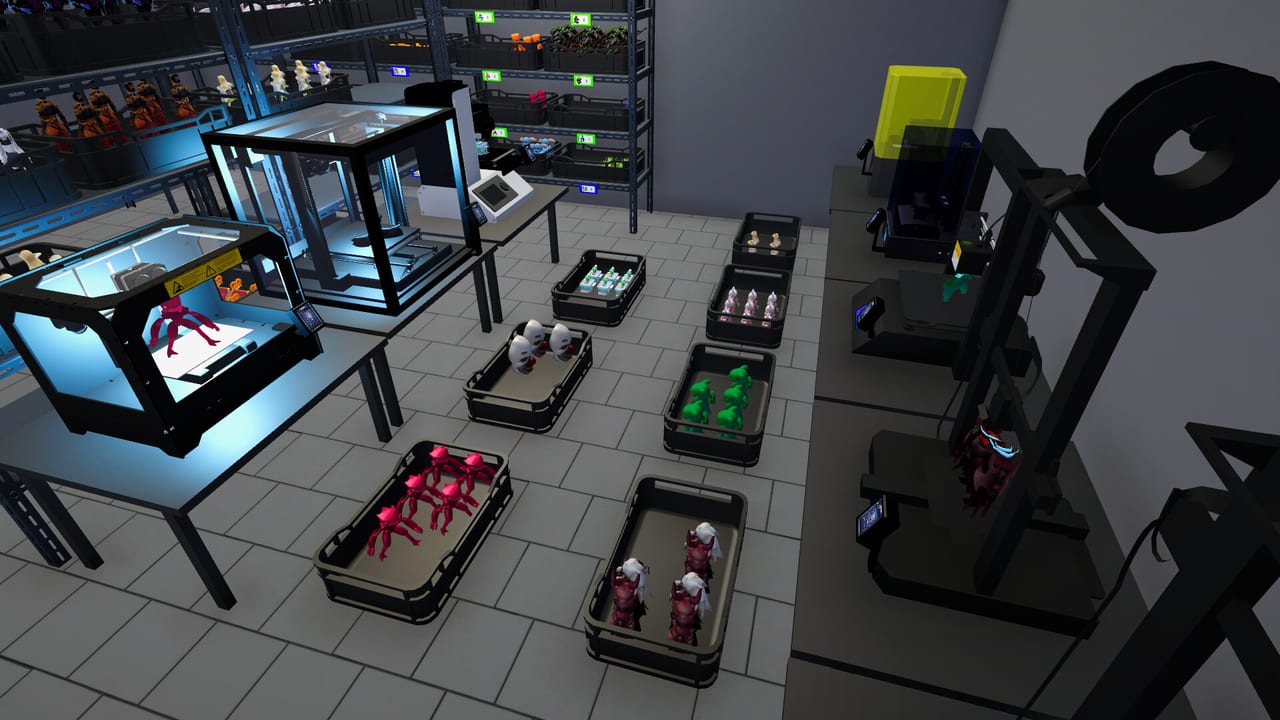
Figure Shop Simulator 1.0 added detailed Worker Settings so staff stop acting like opaque black boxes. This guide explains each toggle, recommended starting values, and how settings interact with auto refill, online sales, and Epic production.
Why settings beat hiring more people
Throwing cash at a fifth stocker will not fix a 10% refill threshold that waits until shelves look barren. Settings change when work happens; payroll changes how many hands you have. Tune thresholds first, then hire (Hire Employees).
Stock Worker — Figure Shelf Refill Threshold
This percentage tells stockers how empty a shop shelf must become before they prioritize a refill. Community play patterns from earlier builds suggested workers engage more once shelves fall near half—now you can encode that preference precisely.
- Higher threshold (e.g. 60–70%): shelves stay fuller; useful for popularity photos and walk-in satisfaction.
- Lower threshold (e.g. 30–40%): stockers idle less on nearly full aisles; useful when warehouse ferrying is the bottleneck.
Always keep auto refill enabled on selling shelves or the threshold cannot help (Shelf Management, Stock Worker).
Stock Worker — Job Priority
Choose shop-shelf priority when customers are the main drain. Choose warehouse priority when you are staging trays for online orders, Epic restocks, or Master of Perfection printing weekends. Flip priority for a day when the symptom changes—do not leave a warehouse-first policy running during a busy Saturday of foot traffic.
Stock Worker — Restock All Shelves at End of Day
Enable this when mornings should open “full store ready.” Disable it on mega-shops where end-of-day saves already crawl and selective restocks are enough. Pair with the ritual of ending the day cleanly so progress checkpoints (Getting Started).
Printer Worker — Filament Refill Threshold
Printer workers can top filament once remaining filament hits your percentage. Keep boxes in reach (Filament Guide). If the threshold fires into an empty inventory, workers cannot invent PLA—you must buy boxes first.
Epic printers still need the Printer Engineer for full Epic automation; printer workers alone do not erase Epic babysitting (Automate Production, Printer Worker).
Suggested starter presets
Cozy walk-in shop: stocker threshold ~60%, shop priority, end-of-day restock on, printer filament threshold ~40%.
Online-heavy shop: stocker threshold ~50%, warehouse priority when staging, end-of-day restock on, printer threshold ~35%, and keep Online Sales enabled only with deep trays.
Perfection weekend: disable online sales, raise stocker threshold so displays stay camera-ready, warehouse priority while printing spare Premium/Epic trays (Master of Perfection).
Debugging idle staff
- Confirm auto refill and clear paths.
- Confirm warehouse trays exist for the SKU.
- Confirm threshold is not so low that shelves never “qualify.”
- Confirm filament boxes exist for printer thresholds.
- Only then hire another worker.
Related
1.0 Release Guide, Staff Hub, Patch Notes.
Takeaway
Write your four numbers on a sticky note: stocker threshold, priority, end-of-day yes/no, printer filament threshold. Revisit after every remodel and after every online sales toggle.
Change-one-variable science
When debugging, change only the stocker threshold on day one, only priority on day two, only end-of-day restock on day three, only printer filament threshold on day four. Multivariable thrashing makes 1.0 settings look random when they are simply unmeasured (1.0 Release Guide).
Interaction with online sales
Online-on + warehouse priority + low shop threshold can leave walk-in aisles looking neglected while backrooms overflow. Online-on + shop priority + high threshold keeps displays pretty but may starve order buffers. Write a policy that matches your weekly goal: reputation weekend versus order weekend (Online Sales).
Interaction with perfection projects
During Master of Perfection pushes, warehouse priority helps stage proof trays, high thresholds keep prestige aisles camera-ready, and online stays off (Master of Perfection). After the badge pops, revert to your cozy preset so payroll is not stuck in project mode forever.
Large-shop performance notes
End-of-day restock-all is wonderful until saves crawl. If day-end already lags, restock critical aisles manually or with normal thresholds and leave the all-restock option off. Clean paths still matter more than any slider (Stock Worker).
Training checklist for new hires
After hiring, set thresholds before watching them work. New workers inheriting absurd 10% thresholds look “broken.” Confirm auto refill, trays, filament boxes, then observe for thirty seconds. Only then adjust numbers.
Documentation habit
Keep a note in your real-life phone: date, threshold, priority, end-of-day flag, printer filament percent, online on/off. When a patch lands, compare notes to the live UI instead of guessing what changed (Patch Notes).
Frequently Asked Questions
Quick answers to the most common questions.
When were worker settings added?
With the 1.0 Out Now update on 10 August 2026.
Does a high refill threshold waste labor?
It can if stockers thrash between full shelves—lower the percentage or fix pathing before hiring more staff.
Do settings replace auto refill?
No. Auto refill must stay enabled on shelves; settings only tune when and where workers prioritize jobs.